Keeping Core Code Off GitHub in Plaintext: Win/Mac Bare Git, Cryptomator Backups and Mobile AI Trade-offs
When I first built my Git setup across Windows and Mac, convenience wasn’t the primary requirement. I had a stricter rule for commercial projects I expected to maintain for years: the complete source code must never be uploaded in plaintext to a third-party cloud service—even as a GitHub private repository.
This isn’t an allegation that GitHub will misuse private code. It’s a question of where I place trust. A Private badge is an access-control promise, not proof that the hosting platform is technically unable to access the underlying Git objects. I don’t want an internal-access mistake, a stolen account, a supply-chain compromise, or a future platform incident to be enough to expose the core of a long-term business. Ideally, I hold the decryption keys and cloud storage holds ciphertext.
That’s why I chose a Windows-hosted bare Git repository as the local Central, with my Mac using SMB to push and pull, instead of making GitHub Private the source of truth. I later added a mirror, disconnected encrypted 7z archives, and Cryptomator-encrypted OneDrive / Google Drive backups. But uploading an encrypted backup is not the same as pushing to an encrypted Git remote—and the distinction became painful when I wanted to use my phone to coordinate work through ChatGPT/Codex.
This is a revision of my 2024–2026 operations notes, not a claim that a new encrypted remote has been deployed. I am retaining the existing Git 2.47.3 synthetic-repository evidence for mirror/prune/recovery behavior; it doesn’t establish encrypted cloud push performance or mobile workflow reliability.
Why a GitHub Private repository wasn’t my starting point
My threat model is about limiting what a cloud operator can technically read. It isn’t an accusation against GitHub, OneDrive, or Google Drive. GitHub’s terms for private repositories describe confidentiality and service-access exceptions; that is a different guarantee from whole-repository client-side encryption with keys held only by the owner. For many projects, a normal private repository is the right tradeoff. For my most valuable source code, I made a different one.
| Approach | What the provider may see | Tradeoff |
|---|---|---|
| Standard GitHub Private repository | Ordinary Git objects, source and commit history protected by platform access controls | Fails my “no plaintext source in cloud storage” rule |
| Local Git Central + Cryptomator cloud sync | Encrypted file contents and names, with some size/timing metadata still exposed | Useful offsite backup; not native Git collaboration |
| Client-encrypted whole Git remote | Intended to store ciphertext only; actual metadata/security scope depends on the implementation | Possible push/pull route that needs independent testing |
| Disconnected encrypted 7z snapshots | Encrypted point-in-time archives outside online sync | Helps recovery; not real-time collaboration |
Client-side encryption isn’t magic. Malware on a trusted machine, compromised keys, or an AI service that receives decrypted source context can still leak code. Cryptomator documents these limits, including metadata leakage. My goal is a narrower, testable boundary, not a promise of absolute safety.
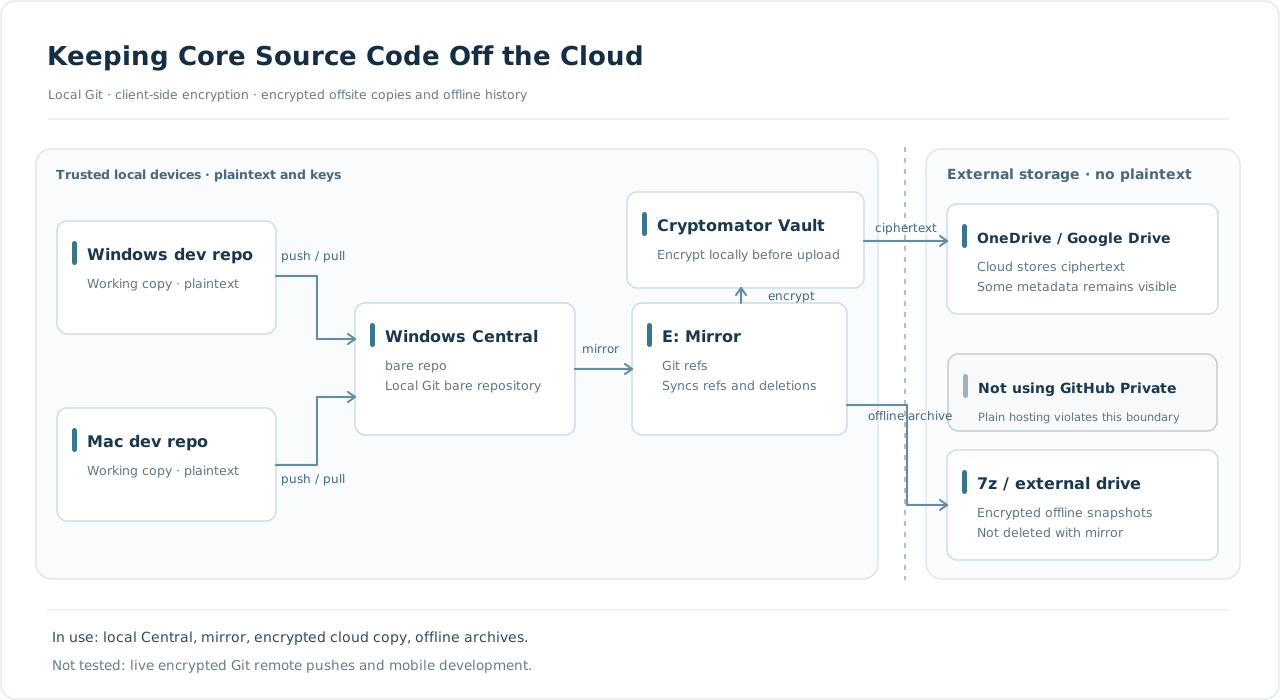
Architecture schematic: Git collaboration remains local; offsite storage holds client-encrypted backups and independent offline archives retain history. Encrypted Git remote pushes and phone-based development are future design paths.
Syncing Git over a Win/Mac LAN: why a bare repo as Central
Here’s the runtime relationship:
Windows dev repo ─── push / pull ──┐
                                  ├── Windows Central(bare repo)
Mac dev repo ─ SMB ─ push / pull ──┘           │
                                             │ mirror update
                                             ▼
                                      E-drive mirror bare repo
                                             │
                                 encrypted archive / offline copy
                                             ▼
                                    external drive, offsite cloud
Of the four layers, only the last three actually serve as backups. Laid out side by side, it’s clear which layer fails along with which:
| Layer & location | Key actions | What it covers | What it can’t fix |
|---|---|---|---|
| Collaboration Central: bare repo on Windows D: | Win/Mac push, pull | Pushed code still retrievable if one dev machine dies | Windows powered off, SMB disconnected, Central itself corrupted; not an independent cold backup |
| Same-machine mirror: mirror on Windows E: | clone --mirror, remote update | Recover from latest mirror after Central directory corruption | D and E die together; --prune may propagate branch deletions |
| Offline archive: disconnected external drive | Encrypted 7z packages, 7z t | Host failure, ransomware hitting online copies | Manual updates; newest version depends on archive date |
| Offsite ciphertext: Cryptomator + OneDrive / Google Drive | robocopy, ciphertext manifest verification, download checks | All local devices lost, retrieve remotely | Cloud sync can propagate errors too; excludes uncommitted code and external data |
RPO (how far back you can lose) is determined by each layer’s last successful commit, sync, or archive time; RTO (how long recovery takes) also depends on media speed, decryption, and drill coverage. I never specifically recorded actual recovery times, so here I only compare recovery paths — no made-up minute counts standing in for RTO/RPO. D and E live on the same Windows machine; two drive letters don’t eliminate the shared risk of whole-machine failure.
The key to Central isn’t “a shared folder” — it’s that the folder holds a bare repository. It has Git’s objects, refs, and repo config, but no working tree. Both dev machines keep their own working trees; edits happen locally and get pushed to Central only after committing.
Per the official git init docs, the basic form for creating a bare repo is:
# 示例路径,不是我原机器的目录
git init --bare "D:/git-central/project.git"

# 已有 Windows 工作仓库中配置 Central
git remote add central "D:/git-central/project.git"
git push -u central master
On the Mac side, mount the SMB share locally first, then set the mount path as the central remote. The master below was the branch name that repo used back then; if your default branch is main, don’t copy master blindly.
git remote add central "/Volumes/git-central/project.git"
git fetch central
git pull --ff-only central master
My old operations manual also kept a few very specific Mac-side troubleshooting commands, which eliminated the “is Git stale, or is SMB just not mounted” guessing game:
# 在 Mac 上挂载 Windows 的 SMB 共享(示例地址)
open "smb://<windows-host>/<share-name>"

# 先确定共享真正挂载到了哪里
ls /Volumes
ls "/Volumes/<share-name>"

# 再从项目工作区确认 Git remote 指向的位置和当前分支
git remote -v
git branch --show-current
git status --short
The original notes say to first verify the bare repo is actually visible in the share directory, then operate the central remote — not to rush into reset --hard at the first git pull error. The Windows side followed the same order: check git status, commit, then git push central master. These commands come from the operations notes of that era; intranet hostnames and share paths have been replaced with example placeholders in this article.
In the old daily routine: git pull central master before starting work, then after finishing, check git status, then git add ., git commit, git push central master. The other machine pulled from the same entry point. The --ff-only in the examples is a safeguard I now prefer to keep: stop and deal with divergence instead of letting a plain pull silently create merge commits.
This setup has a very practical benefit: if Central dies, both dev machines still hold the Git history; if one dev machine dies, the history doesn’t die with it. I’ve always treated “a complete repo can serve as the seed for rebuilding” as a design principle. But that statement has conditions: the repo must actually hold the branches, tags, and objects you need. A single-branch clone, a shallow clone, or uncommitted files sitting in the working tree don’t automatically count as a complete backup.
One easily overlooked boundary: accessing a bare repo directly over SMB actually depends on the shared filesystem’s permissions, locking, and network stability. The old setup suited my own two-machine habit; it doesn’t mean it’s fit for cross-region, multi-user, or flaky networks. For a new long-lived Git service, I’d rather use a remote transport like Git over SSH than treat a network share as a general-purpose Git server.
Git mirror cold backups: synced deletion is not a historical snapshot
What actually created safety distance were the layers behind Central. The old E drive held a --mirror-cloned bare repo that never participated in development — only updates; the external drive kept encrypted archives, normally offline; the cloud kept one more encrypted offsite copy. They weren’t four identical git clones, but answers to different failure scopes.
Git’s official definition of git clone --mirror deserves a close read: a mirror contains not just branches but syncs other refs per the mirror refspec. Unlike a normal dev clone, a later git remote update may overwrite the corresponding refs. Initial creation and routine updates look like this:
# 只在初始化冷备仓库时执行一次
git clone --mirror "D:/git-central/project.git" "E:/git-cold/project.git"

# 后续更新镜像。--prune 可能删除源端已经不存在的引用
git --git-dir="E:/git-cold/project.git" remote update --prune

# 只检查 Git 对象,并不等于完成一次恢复演练
git --git-dir="E:/git-cold/project.git" fsck --full
The old E-drive cold-backup manual, besides git remote update, also documented an explicit way to confirm the current commit:
# 在 mirror 裸仓库内执行;本例沿用历史 master 分支
git remote update
git log origin/master -1 --oneline

# 不只比最近一条 log;正式恢复还需要核对 refs 和对象
git for-each-ref --format='%(refname) %(objectname)' refs/heads refs/tags
Here origin/master is the command spelling from the historical notes; whether a bare mirror can address refs by that name depends on the actual config and git show-ref output. The more reliable general approach is to look directly at refs/heads/master and any other refs you need to preserve.
I built a throwaway repo with Git 2.47.3 and walked the --prune deletion chain: pushed a test-prune branch, synced the mirror, deleted the branch from Central, then updated the mirror. The key output was only a few lines:
git_version=git version 2.47.3
feature_after_sync=present 733c4dc75735672f2db8b4ed8185058ceddaf8c7
feature_after_prune=absent
git_fsck_exit=0
git_fsck_output=dangling commit 733c4dc75735672f2db8b4ed8185058ceddaf8c7
restored_master_sha=c7b763f667cbbba6c1bb39a6719236a554257a8c
Note: git fsck returned 0 and could still find the dangling commit, but the mirror no longer had the test-prune branch ref. Dangling objects may vanish in later garbage collection. A mirror is not a “time machine” — it syncs the latest state, and it syncs deletions too. This experiment verified Git ref behavior; the reliability of 7z and cloud copies still needs real-archive recovery drills.
Per the git remote docs, remote update performs a fetch; --prune clears stale remote refs per configuration. Each update normally transfers only the new objects needed — no need to re-copy the whole repo. But a mirror is a synced copy, not an immutable snapshot. If upstream accidentally deletes a branch, the next pruned sync may propagate that deletion into the mirror. It’s great for fast recovery of current state, but it can’t single-handedly carry all “anti-deletion, anti-ransomware” responsibility.
So I also kept two different backup branches back then: one packed the cold repo into dated, encrypted 7z archives on a normally-disconnected external drive; the other stored the Git mirror in a Cryptomator encrypted vault, then copied the vault’s ciphertext directory into the OneDrive / Google Drive sync folders. They may protect the same Git history, but you can’t simply draw it as “every cloud copy goes through 7z first, then Cryptomator.” What actually matters is that some historical archive won’t be overwritten by Central’s next update. The encryption password must not sit next to the archive, and a successful copy is not a successful recovery.
D-drive Central and E-drive mirror on the same Windows box mitigate repo mishaps or single-volume damage, but they can’t stop whole-machine failure, theft, or same-machine ransomware. An external drive only earns its offline isolation if it’s actually disconnected after the backup completes; cloud storage that synced a deletion or corruption may not retain a usable old version. These differences are why I later stopped being satisfied with “I already have several backups.”
One more scope note: Git preserves committed Git objects and refs — it does not automatically back up .gitignored large data, uncommitted working-tree changes, or external databases. Projects using Git LFS or submodules need to separately confirm those objects and dependencies are backed up. A complete repo mirror is not a complete dev environment. Runtime data like Docker volumes needs its own backup plan; I covered that separately in my disaster-recovery writeup on backing up Docker volumes to GitHub.
Cryptomator + cloud drives: verifying encrypted backups with SHA-256
The trickiest part of the cloud layer isn’t uploading — it’s confirming after the upload that no file went missing. I kept two dedicated operations notes, one for Cryptomator + OneDrive and one for Cryptomator + Google Drive, with the ciphertext baseline manifest, the VaultIntegrityCheck.ps1 invocation order, and how to locate MISSING, CHANGED, and EXTRA after copying.
Cryptomator handles client-side encryption of file contents and names; the cloud client handles transfer — they aren’t two features of the same software. Cryptomator’s official security statement also stresses that encryption is no substitute for backup. The actual old flow looked more like this:
E: cold mirror / Cryptomator encrypted vault (baseline)
     │
     ├─ fingerprint the stable ciphertext directory (Update)
     │
     ├─ robocopy into the OneDrive or Google Drive local sync directory
     │
     ├─ wait for the cloud client to show sync complete
     │
     └─ read-only compare against the target ciphertext directory (Verify)
          ├─ MISSING: in source, not in target
          ├─ CHANGED: same path, different file fingerprint
          ├─ EXTRA: extra files at target — judge conflicts/temp files
          └─ match: local sync directory matches the manifest
My own VaultIntegrityCheck.ps1 used two modes: Update only on the confirmed-good E-drive ciphertext master, and read-only Verify against the target without refreshing the baseline. These are historical example invocations of that private script; the native PowerShell comparison below works without it but does not maintain a persistent manifest:
# 只在确认 E: 源 vault 停止写入并且内容正确时更新基准
powershell -NoProfile -File "D:\BackupTools\VaultIntegrityCheck.ps1" `
  -VaultPath "E:\BackupVault" `
  -ManifestPath "D:\BackupTools\vault-manifest.json" -Mode Update

# 等 OneDrive 上传完成,再对目标密文目录做只读校验
powershell -NoProfile -File "D:\BackupTools\VaultIntegrityCheck.ps1" `
  -VaultPath "C:\CloudSync\OneDrive\BackupVault" `
  -ManifestPath "D:\BackupTools\vault-manifest.json" -Mode Verify
The Google Drive variant also kept a robocopy copy command between the two steps, with flags /E /R:2 /W:2 /MT:8 /FFT /Z /NP. The copyable skeleton with neutral directories:
robocopy "E:\BackupVault" "G:\MyDrive\BackupVault" /E /R:2 /W:2 /MT:8 /FFT /Z /NP
if ($LASTEXITCODE -ge 8) { throw "Robocopy failed with code $LASTEXITCODE" }
Microsoft’s Robocopy exit code documentation confirms: only exit code 8 and above means at least one copy failed. But 0–7 merely means the copy phase reported no such failure — it must never be written up as “all files passed SHA-256.” /E includes subdirectories but won’t delete extra files already at the target; and I would never casually swap in /MIR — which deletes target files — on the sole cloud copy.
The historical notes recorded verification feedback types like [OK] Vault matches the manifest exactly., MISSING, CHANGED, and EXTRA. On seeing MISSING or CHANGED, first check whether the upload finished and whether files are still being written — do not run Update against the cloud directory to paper over the anomaly as a new baseline. The Google Drive notes also recorded .tmp.driveupload temp files; they’re likely mid-sync states, not to be ignored unconditionally — re-verify after sync completes to be safe.
If you don’t have that private script, you can at least start with Windows’ built-in Get-FileHash to check a single file’s SHA-256. It’s a standard PowerShell cmdlet; the algorithm and -LiteralPath parameter are covered in the official Microsoft docs:
Get-FileHash -Algorithm SHA256 -LiteralPath "E:\BackupVault\vault.cryptomator"
Get-FileHash -Algorithm SHA256 -LiteralPath "C:\CloudSync\OneDrive\BackupVault\vault.cryptomator"
But checking one config file is far from enough. A vault-wide manifest should cover at minimum relative paths, file sizes, and the SHA-256 of every ciphertext file, and detect extra files, missing files, and same-name changes at the target; it also needs a clear source baseline date — never compare while either side is still being written. Without a ready-made verification tool, a generic read-only PowerShell snippet works: recursively list relative paths, byte counts, and SHA-256 for source and target files, then use Compare-Object to find differences:
function Get-Inventory([string]$root) {
  $base = (Resolve-Path -LiteralPath $root -ErrorAction Stop).ProviderPath.TrimEnd([char]'\')
  Get-ChildItem -LiteralPath $base -File -Recurse -Force -ErrorAction Stop |
    ForEach-Object {
      [pscustomobject]@{
        Path   = $_.FullName.Substring($base.Length).TrimStart([char]'\')
        Bytes  = $_.Length
        SHA256 = (Get-FileHash -LiteralPath $_.FullName -Algorithm SHA256 -ErrorAction Stop).Hash
      }
    }
}
$original = @(Get-Inventory "E:\BackupVault")
$replica  = @(Get-Inventory "C:\CloudSync\OneDrive\BackupVault")
if (!$original.Count -or !$replica.Count) { throw "Empty or unavailable vault" }
$diff = Compare-Object $original $replica -Property Path,Bytes,SHA256
if ($diff) {
  $diff | Format-Table -AutoSize
  throw "Local encrypted vaults differ"
}
Write-Host "[OK] Local encrypted vault file hashes match"
This new example only covers files — not empty directories or cloud-side state — and lacks the historical Update/Verify persistent-baseline capability. Real cloud verification is still missing one step: re-download a cloud copy of the encrypted archive to a location unrelated to the sync directory, then compare the downloaded file’s hash against the trusted record kept before upload. “Cloud sync icon shows complete + local directories match” alone does not prove the remote files are retrievable.
For the offline external drive, I used full encrypted 7z packages rather than always relying on the hot mirror. 7z’s -mhe=on encrypts filenames inside the 7z archive, -p means use a password; never paste the password in plaintext into shared scripts, command history, or logs. The official 7-Zip 7z format notes confirm AES-256 support. When creating an archive, I recommend confirming the password and “encrypt filenames” in the GUI; the CLI parameter example is kept below — check your local 7z -h for version and password input behavior first, and don’t write the password directly into scripts or command history:
# 只在冷备仓库没有写入时,对其目录创建带口令的 7z 归档
7z a -t7z -p -mhe=on "git-snapshot-YYYYMMDD.7z" "E:\GitCold\project.git"

# 测试归档是否能读完:输入口令后检查退出码
7z t "git-snapshot-YYYYMMDD.7z"
For example, after re-downloading the archive from the cloud to D:\Downloads, verify byte-identical upload/download like this:
$before = (Get-FileHash "D:\GitArchive\git-snapshot-YYYYMMDD.7z" -Algorithm SHA256).Hash
$after  = (Get-FileHash "D:\Downloads\git-snapshot-YYYYMMDD.7z" -Algorithm SHA256).Hash
if ($before -ne $after) { throw "Downloaded archive SHA-256 mismatch" }
Matching hashes only prove these two archives are byte-identical — not that the baseline itself is untampered, and not a substitute for 7z t, extraction, git fsck, ref comparison, and an actual clone. Keep the baseline manifest separately, protected from being corrupted by the same failure; and really disconnect the external drive after backup. Separating “ciphertext transferred correctly” from “code history recoverable” into different checks keeps you from treating one [OK] as an all-purpose insurance policy when disaster hits.
What I’m still missing: a Git push that sends ciphertext
There were always two separate paths in this setup. The Windows and Mac working copies push to a plaintext local bare repository. Separately, a mirror is protected inside a Cryptomator vault, and the encrypted vault files are synchronized to a cloud drive. Frequent vault uploads don’t make a GitHub repository able to fetch, inspect, or merge that encrypted history. I should not present the old system as if it already had real-time encrypted Git pushes.
The next requirement is to ship an encrypted representation of committed Git history offsite soon after a commit, without uploading usable source or readable Git history. Encryption must happen before data leaves the trusted client. Key recovery, concurrent writers, accidental force pushes, partial transfers, and actual restoration need testing. “Real-time” here means prompt synchronization of commits, not uncommitted working-tree changes.
One candidate is git-remote-gcrypt, which uses GnuPG to represent an encrypted Git remote and can bridge regular Git transports. Its upstream README warns that a generic Git-URL backend reuploads the entire history on every push as the repository grows. It also documents force-push hazards. An rsync-style backend can be incremental, but it isn’t an ordinary GitHub Private remote. I haven’t accepted any of these paths as a tested production replacement.
git-crypt is not the same solution: it protects selected file contents, not filenames, commit messages, and the rest of the Git metadata. Automating ciphertext backups is a practical alternative that reduces recovery-point lag, but it still doesn’t provide GitHub pull requests, searchable diffs, or cloud AI agents that can operate directly on encrypted code.
Git disaster recovery: which copy to restore code and history from
I’d left myself two recovery routes. When disaster hits, I’d first determine which repo in hand still holds the target refs, rather than immediately rebuilding an empty project:
Need to recover a Git project
  ├─ dev machine still has complete commits / branches / tags
  │    └─ create empty bare Central → check refs → push local branches & tags
  ├─ dev machine incomplete, but E-drive mirror still readable
  │    └─ fsck → inspect refs → clone out worktree, then compare history
  └─ no online copies available
       └─ find offline/offsite historical archive → verify SHA-256 → 7z test & extract
                                     → git fsck → reconcile refs → clone
This check also reminded me: git push --all only pushes local branches. Just because the current worktree boots doesn’t mean every branch from every past dev machine is in this one copy.
One scenario: Central is gone, but an intact dev repo survives. Then you can recreate a bare repo and push the needed branches and tags back from the dev machine:
# 在新 Central 的可写位置创建空裸仓库
git init --bare "/path/to/recovered/project.git"

# 在幸存的开发仓库内执行
git remote add recovered "/path/to/recovered/project.git"
git push recovered --all
git push recovered --tags
One must clarify: --all pushes this machine’s local branches, not all of refs/remotes/*. If another machine once had its own branches that this dev machine never saved locally, you can’t claim git push --all will conjure them back. Before formally switching Central, reconcile against the surviving repos’ ref inventory and fill gaps from other surviving copies if needed.
The more extreme scenario: both the local dev machine and Central are gone. Recovery then starts from archives on the external drive or cloud. The order should be: take a backup with a definite date, decrypt and extract, inspect the bare repo objects, reconcile expected refs, and finally clone out a worktree. Don’t overwrite the freshly extracted backup, and definitely don’t start with a --force or --prune mirror push.
# 在解压得到的裸仓库上执行
git --git-dir="/restore/project.git" fsck --full
git --git-dir="/restore/project.git" for-each-ref \
  --format='%(refname) %(objectname)' refs/heads refs/tags

# 确认仓库可读后,再建工作区
git clone "/restore/project.git" recovered-worktree
git fsck checks Git object connectivity and validity; git for-each-ref lists the object IDs behind branches and tags. Together they can at least answer “is the package corrupt” and “are the expected branches and tags there.” But proving real recoverability also means checking file contents, dependencies, external data, and whether you can keep building and working on a fresh machine.
When I later organized verify-coldbackup.ps1, I pinned the check order into a chain: 7z integrity test → decrypt and extract → clone out a worktree → git fsck object check → reconcile all branch and tag SHAs. Just seeing “the archive opens” is far from enough; to confirm the code is really backed up, you have to walk a full recovery in an independent directory.
As an aside, the other path — “mirroring upstream public projects into my own GitHub private repos” — is a different thing from this LAN Central. That route has to deal with GitHub’s restricted refs, branch overwrites, and the target-deletion risk of --force --prune; personal dev branches shouldn’t be mixed into mirror targets. I’ve covered the mirroring specifics separately in mirroring public GitHub repositories into a private backup, so I won’t repeat them here. The official git push docs also spell out the differences between --mirror, --prune, and refspecs.
Why the architecture started to hurt on a phone
For years, the compromise was manageable: both computers held working copies, and Windows was the relay. Now I sometimes want to ask ChatGPT/Codex from a phone to inspect a repository, make a small change, or run checks. When the Windows Central is powered off or the SMB link isn’t reachable, remote collaboration stops.
The Mac’s repository size is another inconvenience, but partial clone and sparse checkout only address disk use. They don’t solve who is allowed to decrypt the source. Most cloud coding-agent workflows need to read and execute plaintext. If a cloud-hosted Git repository contains only ciphertext, GitHub’s web diffs, code search, PR experience and cloud agents can’t understand the project. Decrypting it in an untrusted cloud workspace would undo the very boundary I built the system around.
The more coherent direction is to make the phone a control surface, not a source-code host: reach a trusted always-on Mac/Linux development machine through a secured private network and SSH, and do Git operations and permitted development work there. That doesn’t mean I’ve already built or verified this setup. It also requires careful availability, identity, key, and least-privilege design. If a remote model is sent full decrypted source context from that machine, the code has still crossed a separate trust boundary; a local execution host doesn’t automatically make model data handling private.
An encrypted Git remote could improve offsite synchronization, but it wouldn’t magically give a cloud agent readable code. Three questions remain: who decrypts, where does plaintext execute, and what happens when the phone disconnects? Until those are answered and tested, replacing local Central with ordinary GitHub Private is not an honest “solution” to my requirements.
Common questions on Git bare repos, SMB, and backup recovery
Why not share a regular Git worktree directly over SMB?
Git normally rejects pushes to the checked-out branch of a non-bare repo (receive.denyCurrentBranch). A bare repo has no worktree, so it can serve as Central while Windows and Mac retain separate development copies.
After mounting SMB on Mac, git pull fails — what to check first?
Check ls /Volumes, git remote -v and SMB permissions before investigating locks. Never delete a .lock file without first confirming no Git process is using it; worktree and bare-repo refs locks may differ. Consider Git over SSH for frequent network access.
Is git clone --mirror safer than a plain git clone?
--mirror synchronizes refs, including deletions on later updates; it is not an immutable snapshot. Protect against accidental deletion with dated archives that do not follow upstream changes.
OneDrive / Google Drive says “synced” — does that pass hash verification?
No. Client sync status, local ciphertext-manifest comparison, SHA-256 verification of a fresh cloud download, and actual decryption/git fsck/refs/clone are separate checks. The old script’s [OK] only covered the local directory and baseline it examined.
Why not just use GitHub Private? How often should recovery be tested?
Private access controls are useful, but they do not satisfy my no-plaintext-cloud rule. After setting up or changing encryption/backup, complete an independent restore with keys, Git objects and refs, then clone; lost keys can make intact ciphertext unusable.
References: Git init · Git clone · Git remote · Git push · Git fsck · Robocopy · Get-FileHash · Cryptomator security target · 7-Zip official 7z format